Widget and AI Configuration
Customize the visitor accessibility toolbar and connect an AI provider to power fix suggestions, plain-language explanations, and alt text generation.
The Widget (visitor accessibility toolbar)
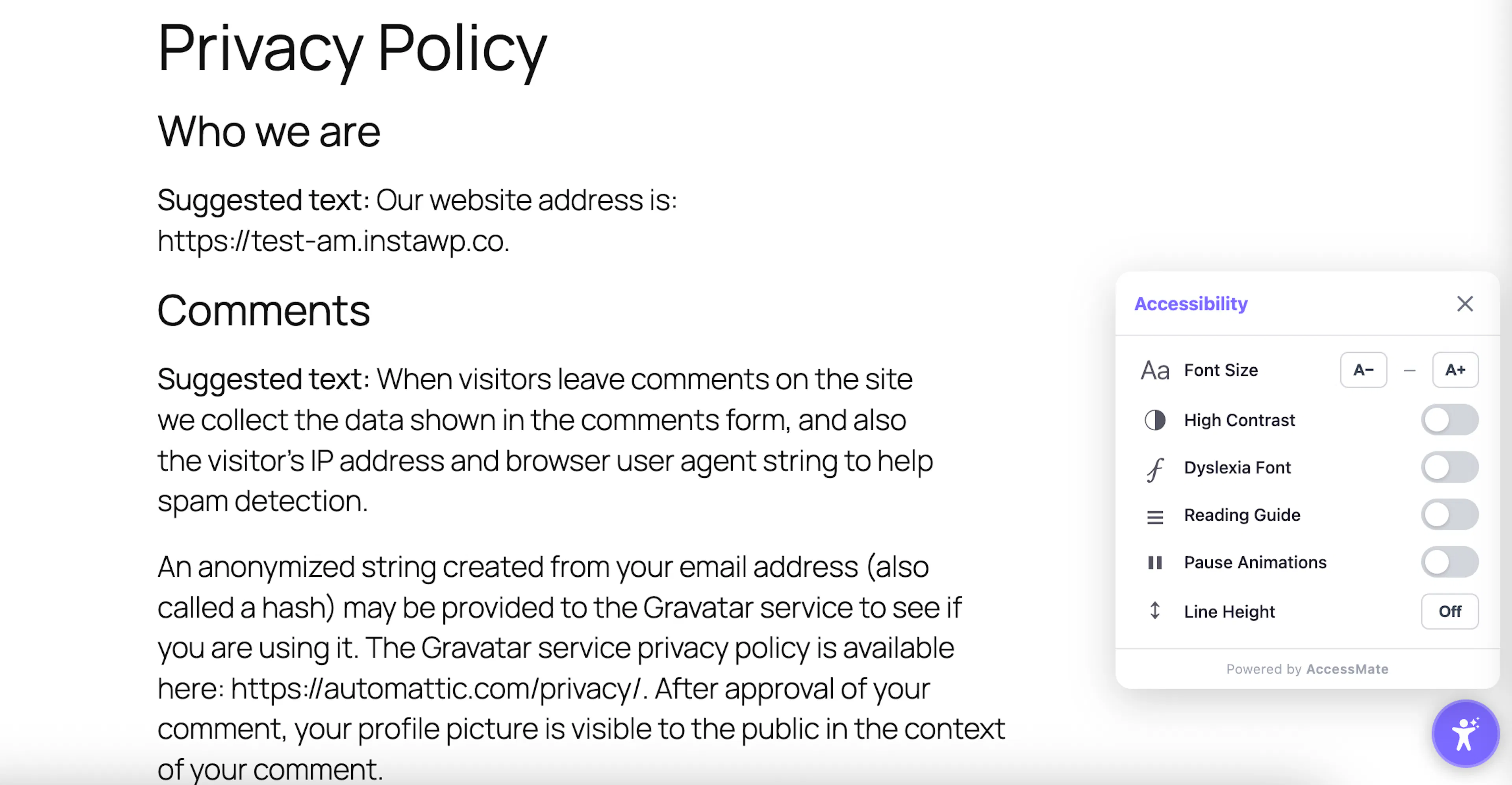
This is the piece that appears on the live site for regular visitors — not an admin tool, but an aid anyone browsing the site can use. It typically shows up as a small floating button that expands into a panel of adjustments people can toggle for themselves:
- Contrast adjustments (e.g. high contrast, inverted colors)
- Dyslexia-friendly font switching
- Font size scaling
- Other reading/navigation aids (cursor size, text spacing, reduced motion, etc.)
Each adjustment is self-contained — turning one on doesn't affect the other — so visitors can combine whichever settings suit them. Whatever a visitor chooses is remembered for their next visit, so they don't have to reconfigure the toolbar every time they come back to the site.
The site owner controls what the widget looks like and which of these features are even offered — position on the page, color/branding, and which toggles are enabled or hidden.
AI Configuration
This is where the site owner connects their own AI provider so the plugin's AI-assisted features (fix suggestions, plain-language explanations, alt text generation) actually work. Conceptually it boils down to three choices:
- Which AI provider to use — a few different providers are supported, including the option to run a local/self-hosted model instead of a cloud one.
- Which model from that provider — providers typically offer multiple models with different cost/capability tradeoffs.
- The credential to authenticate with that provider — stored securely so it isn't exposed anywhere else in the site.
Once configured, this single setup powers every AI-assisted feature across the plugin — the dashboard, the in-page inspector, and reporting all draw from the same configured provider rather than needing separate setup per feature. There's also a scheduling option here, letting scans run automatically on a recurring basis rather than only when manually triggered.